Annotating Images
Camera trap AI is good, but not perfect — Biowatch's gallery viewer doubles as an annotation tool, so you can review, correct, and extend the observations behind every image.
Open any image from the Media or Explore tab to enter the viewer:
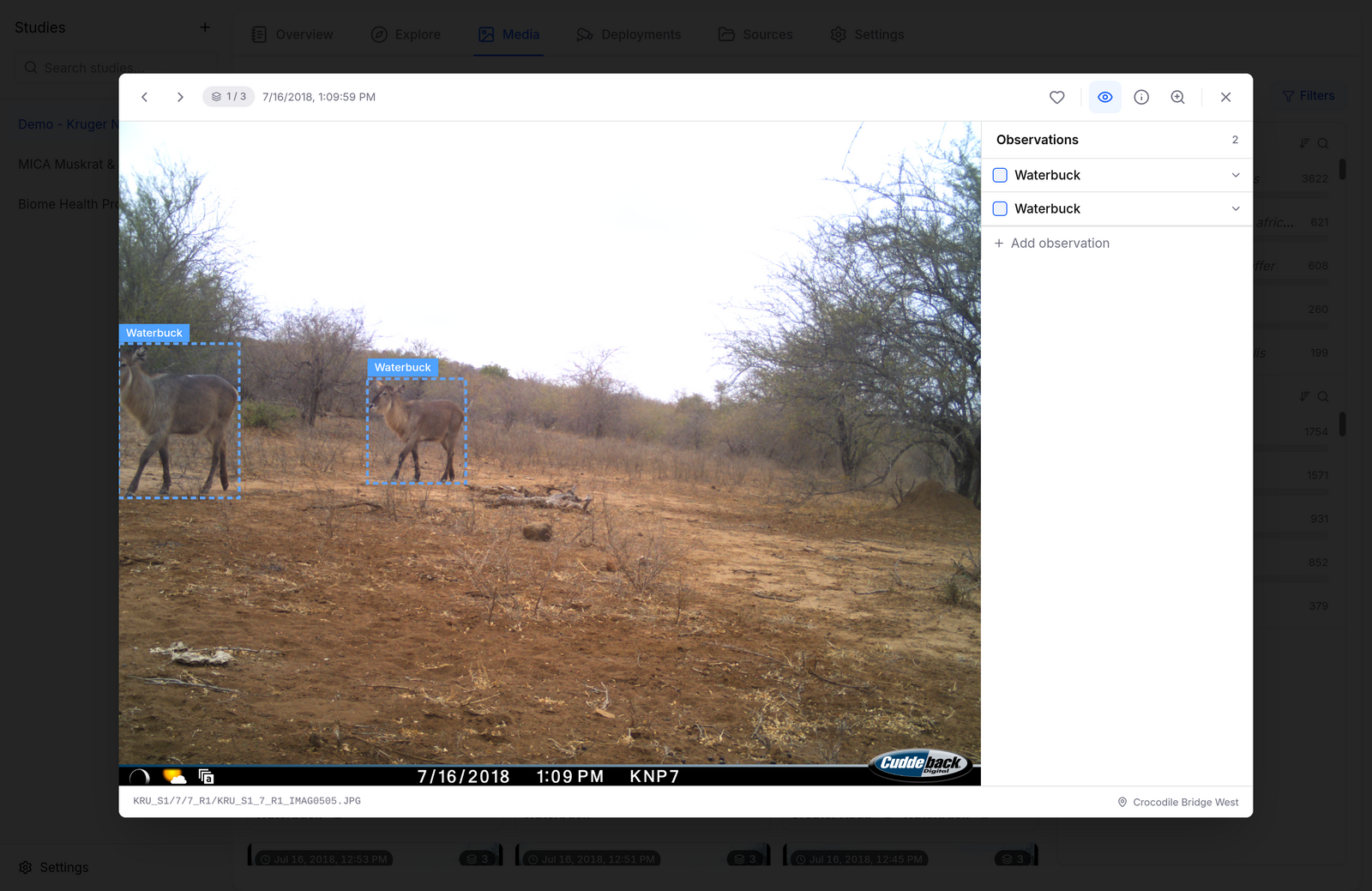
The Observations Panel
The panel on the right lists every observation on the current image. For each one you can:
- Change the species — click the species name and pick from the searchable species list.
- Add details — expand an observation to set sex, life stage, behavior, and count.
- Delete it — remove false detections.
- Add observation — record an animal the AI missed.
Bounding Boxes
Bounding boxes are drawn directly on the image and stay in sync with the observations panel:
- Move or resize a box by dragging it or its corners.
- Draw a new box by dragging on the image — Biowatch creates the matching observation.
- Toggle visibility with the bounding-box button in the toolbar (or press B).
Keyboard-First Review
Reviewing thousands of images is a keyboard job. Press the shortcuts button (or ?) to see the full map:
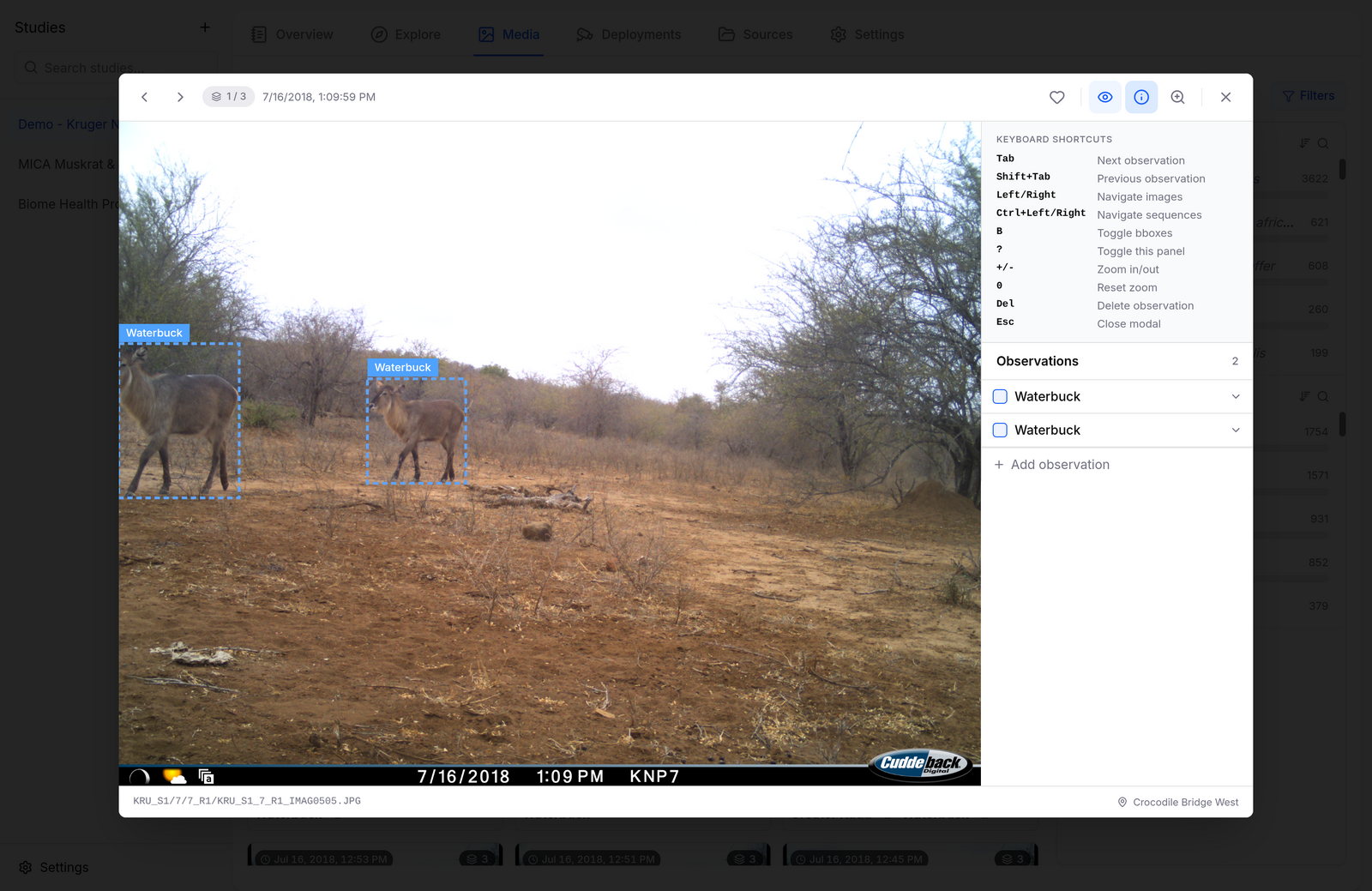
| Key | Action |
|---|---|
| Tab / Shift+Tab | Next / previous observation |
| Left / Right | Navigate images |
| Ctrl+Left / Ctrl+Right | Navigate sequences |
| B | Toggle bounding boxes |
| + / - | Zoom in / out |
| 0 | Reset zoom |
| Del | Delete observation |
| Esc | Close the viewer |
Every edit is undoable with Ctrl+Z (Cmd+Z on macOS). Mark standout images with the heart button to find them again later.
Your corrections are stored in the study database and flow into every chart, map, and export — fix a species in the gallery and the Overview distribution updates immediately.